

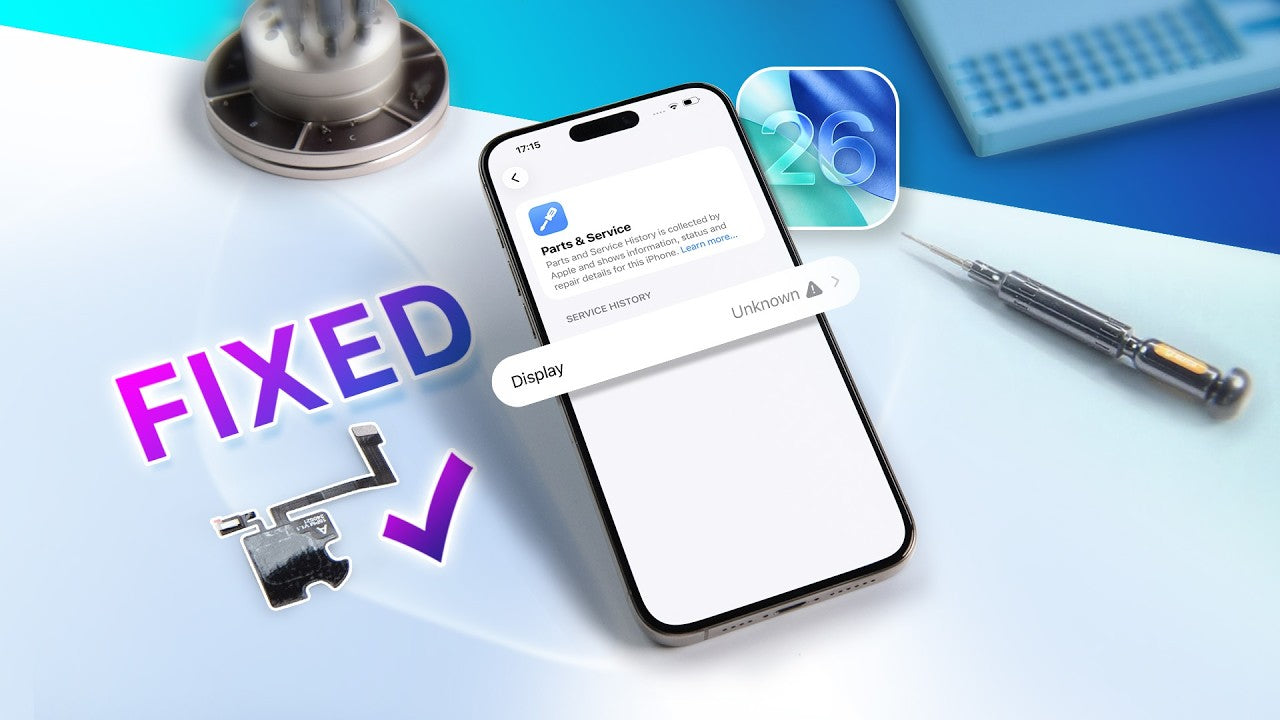
From iOS 26 onwards, Apple enhanced its part verification system, leading repair technicians to encounter challenges when replacing screens for the iPhone 15/16 series and receiving an “Unknown Part” message despite the display functioning flawlessly.
This issue becomes even more challenging when the original device-paired sensor flex is damaged, making traditional IC transfer or True Tone programming insufficient.
In this guide, we walk you through real repair tests performed on an iPhone 15 Pro Max and iPhone 16 series, explain why the alert appears, and show you the proven fix using REFOX programmable sensor flex, plus alternative repair-safe solutions.
Why iOS 26 Shows “Unknown Part” After Screen Replacement
iOS 26.1 introduces deeper pairing between the display and the device’s sensor flex module. Even after transferring the original IC and writing True Tone, the system still checks:
- Display IC pairing
- Sensor flex pairing
- Proximity & ALS data
- Compass sensor integrity
If the sensor flex is not the device’s original paired module, iOS 26.1 can mark the display as Unknown Part — even when the replacement screen is OEM, service-pack, or diagnostic-passed.
Repair Scenario: iPhone 15 Pro Max With Damaged OLED + Broken Sensor Flex
The device used in this test had:
- Severe OLED damage
- Original sensor flex completely broken
- A need for full display replacement
Even after performing the industry-standard repair steps, the “Unknown Part” message still appeared under certain conditions.
The Problem: Unpaired Sensor Flex Triggers the Alert
Test 1: No Sensor Flex Connected
- The screen works
- No Unknown Part message appears
Test 2: Install a Pulled Sensor Flex (from another device)
- iOS displays Unknown Part
- Even with original IC transplanted
- Even with diagnostic-compatible screens
The Solution: REFOX Programmable Sensor Flex (Fully Fixes the Alert)
If the original sensor flex is damaged, lost, or unusable, you can reprogram a new flex to match the device, eliminating the message entirely.
This process involves:
- Flashing the iPhone
- Using REFOX Assistant
- Programming a new sensor flex
- Installing it on the replacement display
Below is the complete step-by-step process.
Step-by-Step Fix: How to Use REFOX Programmable Sensor Flex
1. Flash & Reinstall the iPhone
- Connect the iPhone to your computer
- Open REFOX Assistant
- Go to the Flash page
- Select the correct firmware
- Click Unbind → OK
- Enter Recovery Mode:
- Press volume up
- Press volume down
- Hold power
- When “Success” appears, click OK
- Keep the device connected
2. Connect the REFOX Programmer
- Connect the programmer to the computer
- Attach the repair module
- Insert the programmable sensor flex
- Connect it to the programmer
3. Program the Sensor Flex
- Open the Proximity/ALS page
- Click Test
- If result = compass sensor error, continue
- Click Cloud Burn
- When the result displays “Normal,” programming is complete
4. Install the Programmed Sensor Flex
Once installed:
- No Unknown Part warnings
- Touch, brightness, and sensors work normally
- Compatible with iPhone 15 and iPhone 16 series
Tools & Parts Checklist
Tools
- REFOX Assistant software
- REFOX programmer
- Repair module
- Soldering station (for IC transfer)
- Screen separator / pre-heater
- Tweezers, spudgers, precision screwdrivers
Parts
- Aftermarket, OEM pulled, or service pack replacement screen
- REFOX programmable sensor flex
- Replacement display IC (if needed)
- Adhesive seals
Conclusion
With iOS 26, Apple’s parts verification is stricter than ever. Transferring the original display IC is no longer enough — the sensor flex must also be paired.
If your original sensor flex is broken or missing, the most reliable solution is the REFOX programmable sensor flex, which restores full compatibility and removes all “Unknown Part” warnings.
Whether you’re running a repair shop, refurbishing devices in bulk, or fixing your own iPhone, this method ensures:
- No warnings
- Full functionality
- A professional repair result
Share:
Samsung S23 Ultra Not Charging: How We Fixed It Without Splitting the Board